Extract Subtitles from Video Online Free
Pull subtitles from any video — free, fast, no login
· Video
Processing...
Processing your file using speech-to-text AI models.
Success!
Subtitles extracted successfully.Extraction Error
Table of Contents
What Is an AI Subtitle Extractor?
An AI subtitle extractor is an online tool that automatically reads the spoken audio in a video file and converts it into timed subtitle text — without any manual input. Unlike traditional software that only reads pre-embedded subtitle tracks (like .srt or .vtt), an AI-powered extractor can generate subtitles from scratch using speech recognition technology.
BraveDown's tool takes this a step further: it handles both scenarios — reading existing embedded subtitle streams and transcribing audio when no subtitle track is present. The result is a clean, downloadable subtitle file you can use immediately.
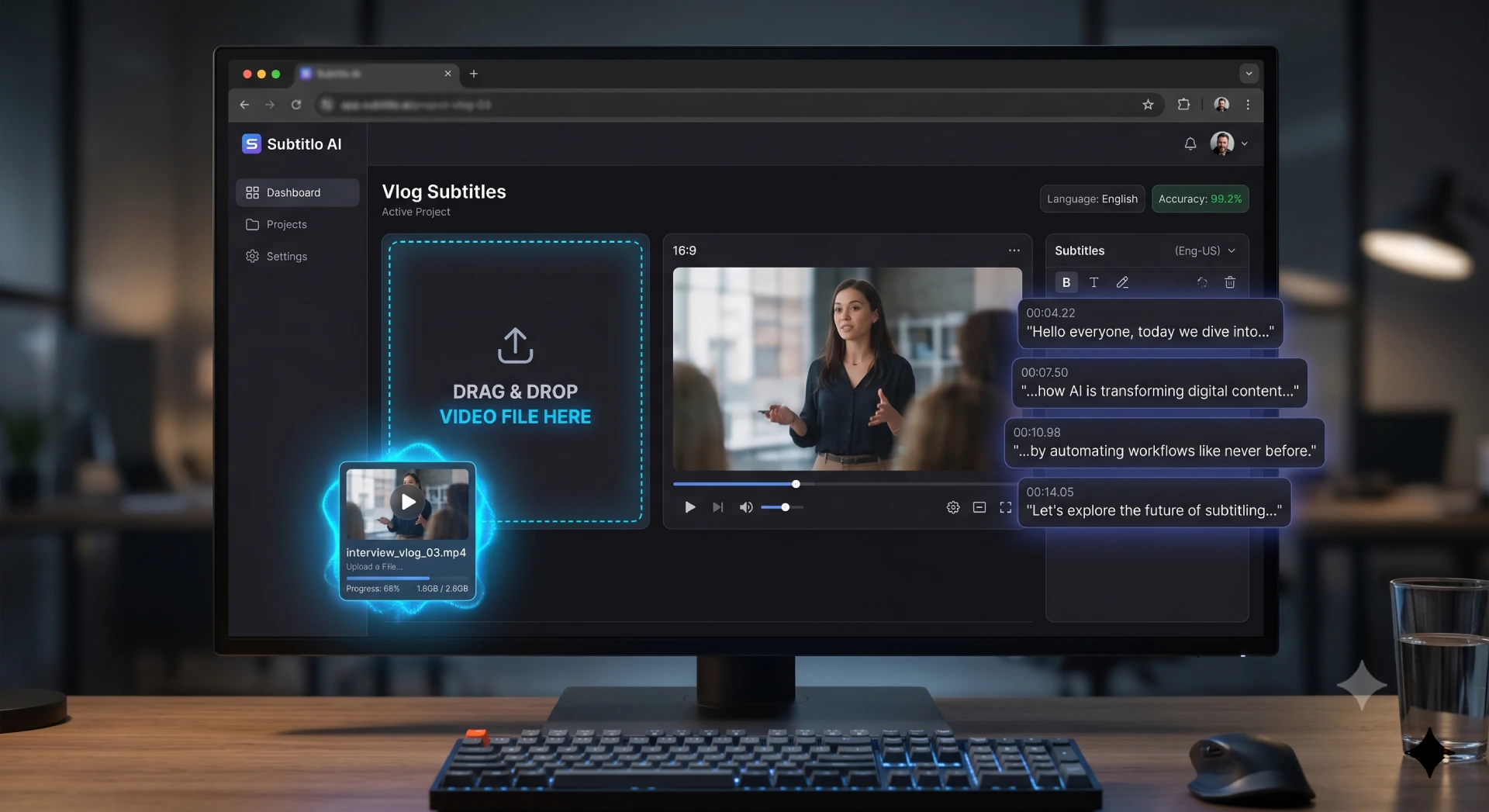
How to Extract Subtitles from Video Online
The process takes under a minute. No software installation, no account creation — just upload and go.
Upload Your Video File
Drag and drop or click to browse. Supports MP4, MKV, AVI, MOV, WEBM and other popular formats. Your file is processed securely and never stored permanently.
Select Extraction Mode
Choose to extract an existing embedded subtitle stream, or let the AI generate a full video transcription from the audio track — ideal for videos with no subtitles.
Download Your Subtitle File
Once processed, download your subtitle file in .srt, .vtt, or plain text format. Ready to embed, translate, or archive — instantly.
Supported Video Formats
BraveDown's online subtitle generator is designed to be format-agnostic. Whether you're working with raw footage, edited exports, or downloaded content, the tool handles the most widely used container formats:
Key Features of BraveDown's Subtitle Extractor
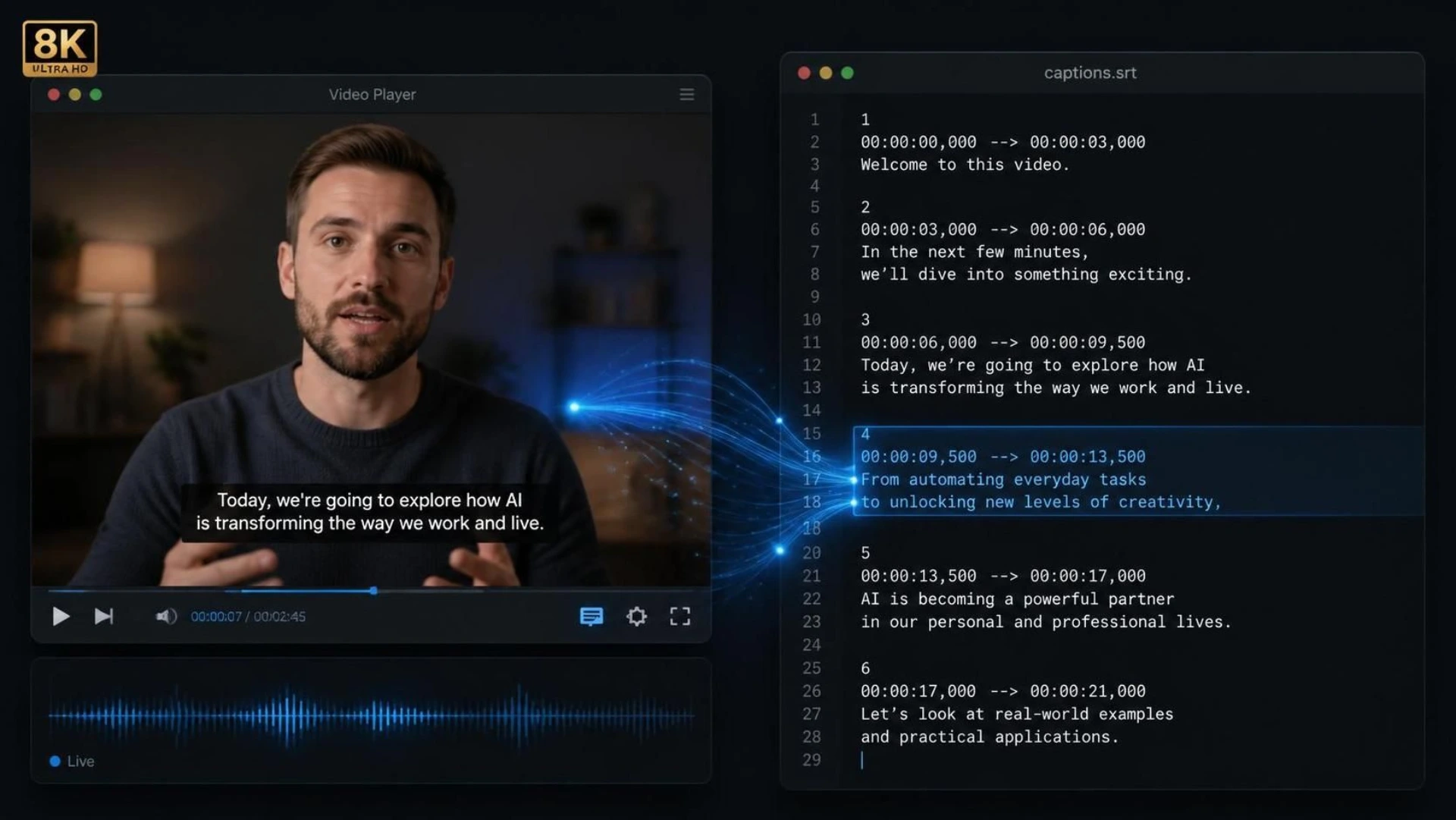
AI-Powered Transcription
No subtitle track? No problem. The built-in speech-to-text engine generates accurate auto transcription directly from the video's audio — supporting multiple languages.
Fast & Browser-Based
Everything runs in your browser. No desktop app, no plugin, no waiting for a slow install — just a clean online experience that works on any device.
Multiple Export Formats
Download subtitles as .srt, .vtt, or plain .txt. Compatible with video editors, streaming platforms, and translation workflows.
No Registration Required
Use the tool immediately — no account, no email, no credit card. Open the page, upload your video, and extract subtitles within seconds.
Who Should Use This Tool?
Whether you're localizing content or making your videos accessible, the ability to extract subtitle online saves hours of manual work. Here's who benefits most:
Video Editors & Content Creators
Extract subtitle tracks from source footage to repurpose as captions for social media clips, YouTube videos, or short-form reels — without re-typing a single word.
Translators & Localization Teams
Get a clean subtitle file extractor output ready for translation. Importing an .srt file into a CAT tool is far faster than transcribing from scratch.
Students & Researchers
Convert lecture recordings or documentary footage into searchable text transcripts. Perfect for note-taking, citation, or accessibility requirements.
Marketing & Corporate Teams
Pull transcriptions from webinars, interviews, or product demos for SEO blog posts, meeting summaries, or compliance archives — all from a single upload.

Ready to Extract Subtitles from Your Video?
No sign-up. No software. Just drop your file and let the AI do the work — for free.
Extract Subtitles from Video Online FreeFrequently Asked Questions
Upload your video file to BraveDown's free AI subtitle extractor, choose your extraction mode, and download the subtitle file in .srt or .vtt format. No registration or software installation is required. The entire process takes under a minute for most video lengths.
The tool supports all major video container formats including MP4, MKV, AVI, MOV, WEBM, and FLV. If your video has an audio track, the AI transcription engine can generate subtitles from it regardless of the original format.
Yes. BraveDown uses AI speech recognition to generate a full video transcription from the audio, even when no subtitle stream is embedded. The output is a properly timed subtitle file ready to download and use.
You can export subtitles as .srt (SubRip), .vtt (WebVTT), or plain .txt transcription. SRT is widely compatible with video editors and players; VTT works best for web publishing and HTML5 video.
Yes, the core subtitle extraction and AI transcription feature is free to use. There is no hidden paywall, no mandatory account, and no watermark on the output files.
Uploaded files are processed for subtitle extraction and are not stored permanently on the server. Your video content remains private and is not shared or used for any third-party purpose.
Accuracy depends on audio quality, accent clarity, and background noise. For clean speech recordings, the AI subtitle generator delivers high accuracy. For noisier audio, minor manual edits to the downloaded .srt file may be needed.
Absolutely. Download the subtitle file and import it directly into any CAT tool or translation software. Working from a clean .srt export is significantly faster and more accurate than re-transcribing the video manually.
Yes. BraveDown is a fully browser-based online tool, so it works on any device with a modern browser — desktop, tablet, or smartphone — without needing to install any app or plugin.
The AI engine supports transcription in multiple languages, making BraveDown's subtitle generator useful for multilingual content. The tool auto-detects the spoken language in the video for optimal transcription output.
Popular Tools


