Instagram Story Downloader in Full HD | Free Online Tool
Save public Instagram Stories and Highlights in the best available quality, straight from your browser
Unlock Pro Features & Unlimited Downloads
Save the Story while it is still available
A useful Instagram Story can be easy to lose in a busy feed. BraveDown gives you a straightforward way to save an accessible public Story or Highlight to your device: copy its link, paste it into the downloader, and select an available file.
Use it to keep a Story you created, retain material you have permission to save, or revisit a public post offline. Available formats and resolution depend on the media Instagram provides for that link, so “Full HD” is an option to look for rather than a promise for every upload.
Use the Instagram Story DownloaderWhy use BraveDown for Instagram Stories?
The best download experience is a short path from a link to a usable file. Whether you are on a phone or a computer, these practical benefits help you stay focused on the content you want to keep.
Start with a Story link
There is no editing project to set up. Copy a link from Instagram, paste it into BraveDown, and review the download choices shown for that media. A direct link also makes it easier to check that you have selected the right Story before saving it.
Work in your browser
Open the tool on a phone, tablet, or desktop browser without installing a separate app. Your browser and device determine where the finished file appears: typically a Downloads folder, a file manager, or a save prompt.
Choose from what is available
A Story might be a photo or a video, while a Highlight can contain several saved Story items. Review the results for the specific link and select the item or quality option that meets your needs. The source media sets the upper limit on image and video quality.
How to download an Instagram Story
Follow the link from Instagram to the result shown by the downloader. Button names can vary slightly between the Instagram app, its website, and different devices.
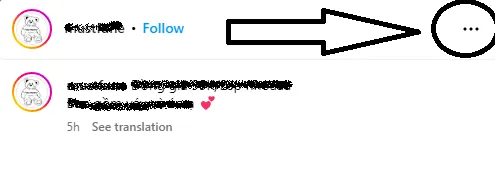
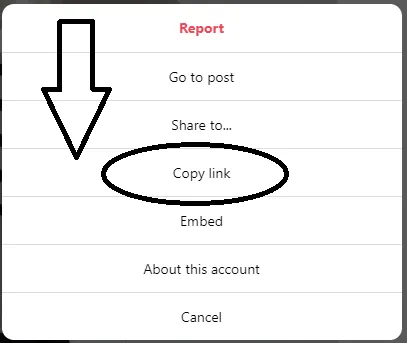
Copy the link
Open the public Story or Highlight you want to save. Use its sharing menu or the three-dot menu to find Copy link. If you cannot find a shareable link, check whether you are viewing the item in a place where Instagram offers that action.
Paste it into BraveDown
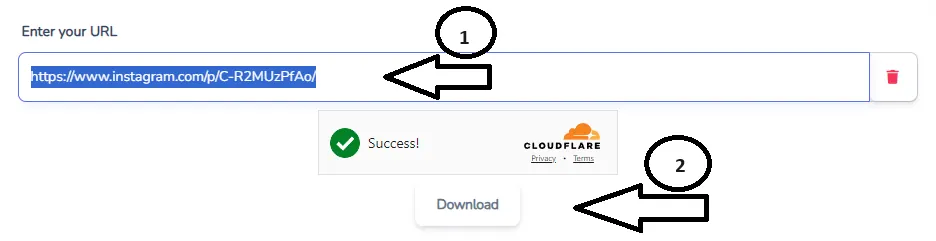
Return to the downloader, paste the complete URL into the input field, and select Download. Keep the link intact; a missing character or an unrelated page URL can prevent the tool from identifying the media.
Review and save the file
Check the media shown in the results, then choose an available download option. If your browser opens the file instead of saving it immediately, use its download or save control. On a phone, look in your browser’s Downloads area or your device’s file manager if the item does not appear in your photo gallery.
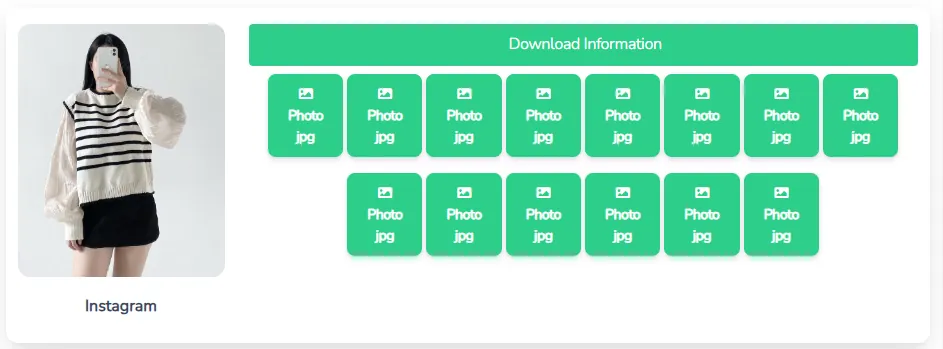
What can you save, and in what quality?
A useful Instagram story saver should make the available choices clear. Look at the preview and file options before downloading, especially when a Highlight contains multiple items.
Photo Stories
Save an accessible image Story when an image download is offered. Compare the result with the preview if details, text, or framing matter to you.
Video Stories
When a video option appears, choose the resolution that suits your screen and available storage. A higher resolution cannot restore detail that was absent from the uploaded Story.
Highlights and other posts
Highlights can remain accessible after a Story’s usual display period. For a regular feed video rather than a Story, see our Instagram video downloader guide.
Access, privacy, and quick fixes
A link may fail because the media is no longer accessible, the URL is incomplete, or the content belongs to a private account. These checks can help you identify the issue without repeatedly submitting the same link.
- Check the URL: Copy the link again and paste the full address, without extra text around it.
- Check access: Confirm that the Story or Highlight is still available and publicly accessible. The tool does not provide access to private accounts.
- Check your download location: Your browser may place the file in Downloads even when it does not appear in your gallery.
- Respect the creator: Save and reuse media only when you have the right or permission to do so, particularly before reposting it.
Keep the Stories that matter to you
Copy a link to an accessible public Story, follow the three steps above, and choose the available file that fits your needs. It takes only a browser to get started.
Review the download stepsFrequently Asked Questions
BraveDown is presented as a free browser-based downloader, so you can begin by pasting an eligible public link without purchasing an app. If a download option appears, review the file before saving it. The quality and format choices depend on the media available for that particular link.
The downloader does not ask you to create or sign in to a BraveDown account to paste a link. You still need a valid link to accessible media. If Instagram does not make a Story publicly accessible, using the downloader will not grant access to it.
No. A private account limits who can view its content, and BraveDown does not offer a way around that restriction. Ask the creator to share the media with you directly if you need a copy, and make sure you have permission before saving or reposting it.
You can try a shareable link to a publicly accessible Highlight. Since a Highlight may contain several Story items, check the results carefully and select the item you intend to keep. The options shown depend on the content available at the link you submit.
No resolution can be guaranteed for every Story. The original upload and the files made available for that link determine your choices. If several options appear, select the one that meets your needs. Downloading a file cannot add visual detail that was missing from its source.
You can open a browser-based downloader on an iPhone and paste an accessible Story link. After selecting a file, check Safari’s download indicator or the Downloads folder in the Files app. The exact save prompt and location can vary with your browser and device settings.
First, copy the complete URL again and remove any surrounding text. Then check whether the Story is still available and whether the account is public. If the link opens unrelated content, return to the specific Story or Highlight and use its sharing option to obtain a new link.
Start with your browser’s Downloads list or your device’s Downloads folder. On some phones, a downloaded video stays in a file manager until you choose to save or move it to a photo gallery. Your browser settings may also ask you to choose a location each time.
A successful download does not automatically give you permission to publish someone else’s work. If you plan to repost, edit, or use a Story commercially, obtain the rights or permission you need from its creator. Keeping a file for yourself and redistributing it are different uses.
The workflow described here runs in a web browser: copy the media link, paste it into BraveDown, and select an available download. There is no separate app or extension in these steps. If the file does not save immediately, use your browser’s built-in download controls.
Popular Tools


