YouTube Video Downloader – Download Videos Online
Download YouTube videos with a clear, device-friendly workflow
Unlock Pro Features & Unlimited Downloads
A clearer way to think about a YouTube Video Downloader
A YouTube Video Downloader helps users move from a public video link to a saved file through a simple browser-based flow. Whether you need a video for later viewing or audio for personal listening, the best experience starts with choosing an appropriate format, quality level, and device-ready file.
Start with the right goal
Choose video when visuals matter, choose audio when you only need sound, and avoid oversized files when playback will happen on a smaller screen.
How an online video download flow works
Most browser-based download tools follow the same basic path. The difference is not the number of steps; it is how clearly each step presents the choices that matter before a file is saved.
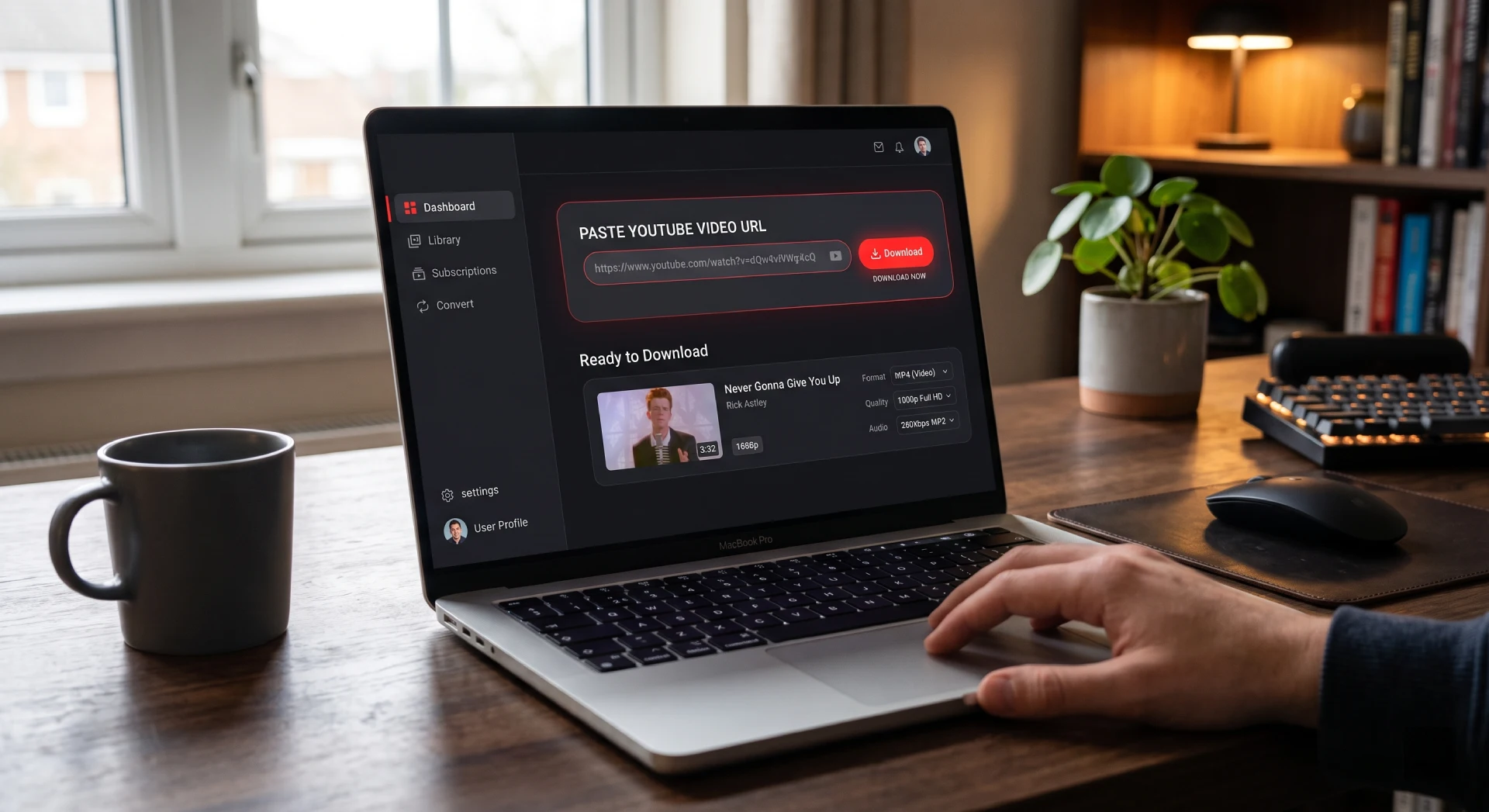
Copy the intended video link
Begin with a complete public video URL. Checking the link before processing reduces failed attempts caused by incomplete copies, extra characters, or selecting the wrong video.
Review available output options
Select a format based on how you plan to use the file. MP4 is commonly selected for video playback, while MP3 can suit audio-focused listening such as interviews, lessons, or spoken content.
Match quality to the real use case
Higher quality can create a more detailed viewing experience, but it also increases the file size. A balanced setting is often the most practical choice for mobile playback and routine storage.
Save and organize the completed file
Use clear file names and folders so saved material remains easy to find later. This is especially useful for tutorials, reference videos, educational clips, and recurring audio content.
Choose the file that fits your playback needs
The right output is not always the largest available file. Consider where you will play it, how much storage you have, and whether visual content is necessary.
MP4 for video playback
MP4 is a practical option when you want to retain the visual element of a video. It is suitable for content where demonstrations, screen detail, captions, or imagery are important to the experience.
MP3 for audio-focused use
When visuals are unnecessary, audio can be easier to store and manage. It may suit music, discussions, podcasts, interviews, and other content intended mainly for listening.
Quality with purpose
Think of quality as a trade-off between detail and file size. A moderate option can be more convenient when storage is limited or the file will be viewed on a phone rather than a large display.
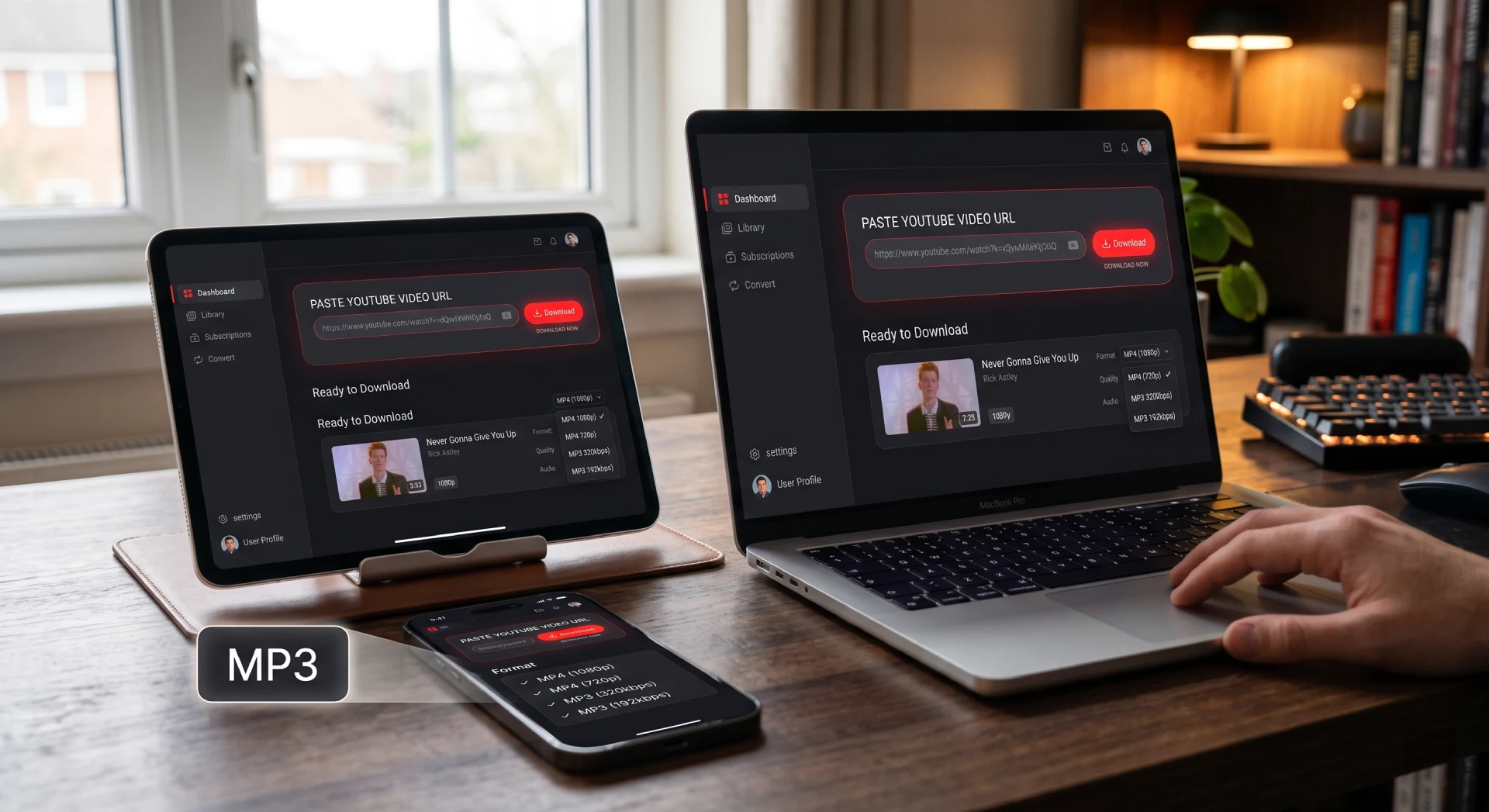
Device compatibility matters
A file should fit the device and context where it will be used. A large video may be unnecessary for a small screen, while a video file remains useful when visual detail supports the content.
- Use video formats for visual guides, demonstrations, and presentations.
- Use audio formats when listening is the priority.
- Choose a reasonable quality level before committing storage space.
Keep every download more manageable
A reliable workflow is mostly about preparation. A few small checks can make repeated use faster and reduce unnecessary clutter on your devices.
Verify the source
Confirm the link opens the intended content before selecting a format or quality option.
Name files clearly
Use folders by topic, project, creator, or format for easier retrieval later.
Protect storage space
Avoid selecting a larger file than your screen, listening setup, or purpose requires.
Respect content rights
Only save content when you have permission or when the intended use is permitted by applicable rules and platform terms.
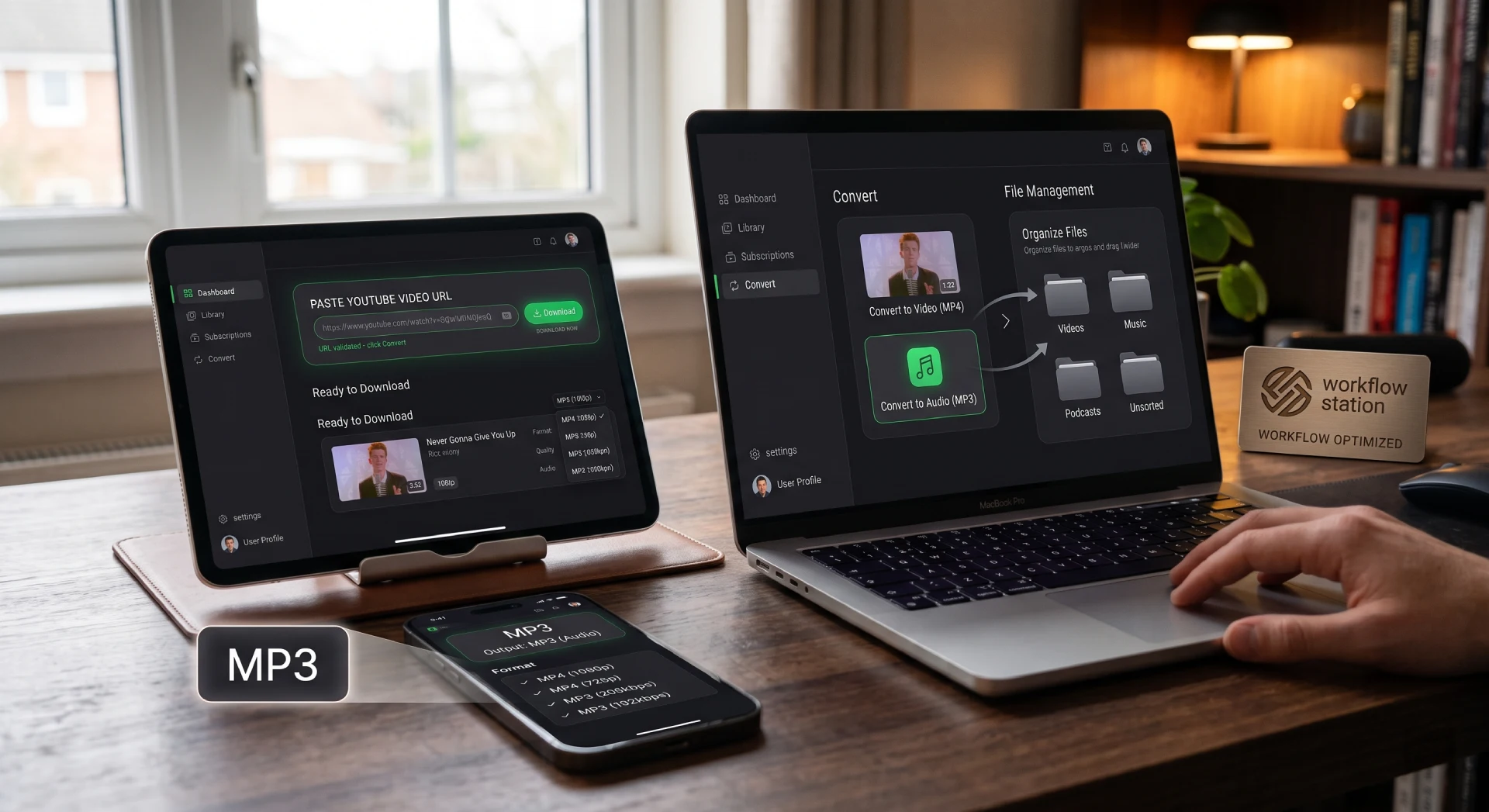
Explore a smoother download experience
A useful downloader journey should make the next step obvious: paste a link, understand the available format options, select a file that fits your needs, and keep your saved content organized.
Try YouTube Video DownloaderFrequently Asked Questions
A YouTube Video Downloader is a browser-based workflow that helps users process a public video link and review available output options. Depending on the tool, users may choose a video format such as MP4 or an audio-focused format such as MP3 before saving a file for later playback.
The usual process is to copy the public video URL, paste it into the downloader field, wait for available output options, select the preferred format and quality, then save the completed file. Check that the original URL is correct before beginning to avoid processing the wrong content.
Choose MP4 when the visual portion of the content matters, such as a tutorial, presentation, demonstration, or video with captions. Choose MP3 when you only need the audio, for example music, an interview, a discussion, or spoken educational content.
Higher-quality video generally contains more visual data, so it typically requires more storage space. Selecting a balanced quality can be useful when playback will happen on a phone or smaller screen, where the difference between very high and moderate quality may be less important.
Browser-based tools are often considered convenient because they can be accessed from desktop and mobile browsers without a full software installation. The final experience can depend on the device, browser, available storage, and how that device handles downloaded files.
Confirm that the source URL belongs to the video you intend to use, review the output format, and consider the quality level and expected file size. You should also make sure that saving the content is permitted for your intended use and complies with applicable terms.
MP4 is commonly chosen for video because it is broadly used for playback on many devices and browsers. However, the best choice depends on your device, available storage, whether visuals are needed, and the quality level that makes sense for your screen.
Create clearly named folders based on subject, project, creator, or file type. Use descriptive file names so you can recognize content without opening every file. This simple structure is particularly helpful when you save tutorials, reference clips, interviews, or recurring audio material.
A clear interface reduces unnecessary steps and makes important decisions easier to understand. Users should be able to identify where to paste a link, what formats are available, and what each option means before saving a file, without navigating distracting or unclear screens.
A practical workflow presents a straightforward sequence: use a correct source link, choose an output format that matches the use case, select an appropriate quality level, and save the file in an organized location. The goal is clarity and repeatability rather than unnecessary complexity.
Popular Tools


