Twitter to MP4: Download Twitter Videos
Paste a tweet link, convert to MP4, and save it in seconds
Twitter to MP4: What it is and why it’s useful
Need to save a Twitter video or GIF for offline viewing, sharing with your team, or keeping a reference? Converting it to MP4 is the easiest route. With BraveDown, you simply paste a public tweet link and download the MP4 right in your browser—no app installs, no unnecessary steps. This page is optimized for the “twitter to mp4” intent with clear steps, troubleshooting tips, and FAQs that match what people search.
Table of Contents
Built for fast downloads
- Paste tweet link → process → download MP4
- Works smoothly on desktop and mobile browsers
- Use public content and respect creators’ rights
BraveDown highlights
People often search for twitter mp4 or “twitter video to mp4” because MP4 plays on almost any device. BraveDown focuses on a clean experience: fewer steps, clear guidance, and a straightforward download flow. If you’re comparing a twitter converter tool, prioritize clarity and reliability—especially when links or privacy settings cause failures.
What you get with this tool
- Easy to use: copy link → paste → download.
- MP4 output: ideal for saving, sending, and offline playback.
- Quick conversion: designed for “convert twitter video to mp4” needs.
- Cross-device: runs in your browser on PC and phone.
- Quality options: choose the best balance of sharpness and file size (when available).
When should you use twitter to mp4?
- Save videos for offline viewing while traveling or commuting.
- Share an MP4 file in chats/workspaces instead of sending a tweet link.
- Keep public content as a reference for learning or research.
- Avoid downloading copyrighted content if you don’t have permission to use it.
How to get a tweet link and download MP4
This is the smoothest workflow for twitter mp4 download. Important note: the tweet must be public. If the post is private or region-restricted, most tools won’t be able to fetch it.
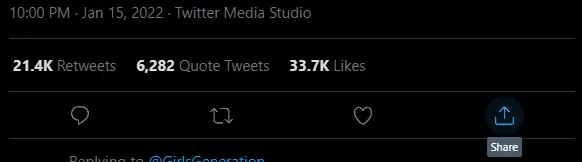
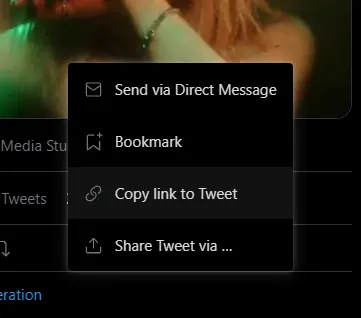
Copy the tweet link
- Open the tweet that contains the video/GIF you want.
- Tap Share.
- Choose Copy link.
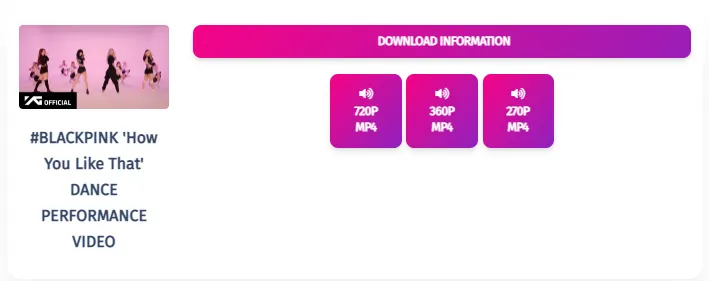
Paste into BraveDown and download
- Paste the tweet URL into the input field on BraveDown.
- Click Download to process the video.
- If multiple options appear, pick the best resolution and save the MP4.
Valid link format
A standard tweet link usually looks like this:
- https://twitter.com/<user>/status/<ID>
Quick visual guide

Common issues & quick fixes
If you search “twitter video downloader mp4” and the download fails, it’s usually caused by privacy settings, an incomplete URL, or temporary browser/network issues. Try the checklist below before retrying.
60-second checklist
- Confirm the tweet is public: private accounts cannot be accessed.
- Copy the full status link: avoid shortened/partial URLs missing “/status/…”.
- Try another browser: some extensions may block downloads.
- Refresh and paste again: helps clear temporary cache issues.
- Check your connection: larger videos need a stable network for a smooth twitter to mp4 process.
Some users also look up “snaptik twitter” while comparing tools. No matter which downloader you use, the same rule applies: the link must be public, and you should only download content you’re allowed to use.
Privacy & copyright notes
BraveDown supports processing public tweet links only. Please respect creators’ rights and the uploader’s privacy. Do not download from private accounts, and avoid saving copyrighted content unless you have permission.
For personal use (study, offline viewing, archiving your own posts), stick to content you own or are authorized to use. This is also the safest approach when using any twitter converter.
Conclusion
For a fast, clean twitter to mp4 workflow, start by copying a public tweet link and pasting it into BraveDown. If something fails, check privacy settings and the URL format first. Ready to try? Paste your link in the download box and pick the MP4 option that fits your needs.
Frequently Asked Questions
Open the tweet with the video, tap Share, and choose Copy link. Paste the public tweet URL into BraveDown and click Download. If multiple options appear, select the quality you want and save the MP4 file to your device.
“Twitter to MP4” means turning a video (or GIF-like post) from a tweet into an MP4 file you can save and play offline. BraveDown uses the tweet link to fetch the public media and provide a downloadable MP4 option.
Common reasons include the tweet being private, the link being incomplete (missing “/status/…”), or browser extensions blocking downloads. Refresh the page, paste the full link again, or try another browser for a smoother twitter to mp4 flow.
No. BraveDown supports public tweet links only. Private accounts and restricted posts aren’t accessible to downloaders. For privacy reasons, you should only download content that is publicly available and that you have permission to use.
No. BraveDown works directly in your web browser. You just copy the tweet link, paste it into the tool, and download the MP4. This makes it convenient on both desktop and mobile without extra installations.
Yes. Copy the tweet link in the Twitter app, open BraveDown in your mobile browser, paste the URL, and download. This is a simple way to do twitter mp4 download when you’re on the go.
Yes—BraveDown functions as a twitter converter by turning Twitter videos into MP4 downloads. It focuses on a clean workflow: paste a public link, process the media, and save the MP4 in your browser.
Many Twitter “GIFs” are delivered as short videos. If the tweet is public, BraveDown can often process it and provide an MP4 output. If it fails, double-check the URL and try again with a different browser.
Use the full tweet URL that includes the status ID, typically like: https://twitter.com/<user>/status/<ID>. Avoid shortened or partial links. A complete link helps the tool locate the media for twitter to mp4 conversion.
It depends on content rights and your intended use. Only download videos you own or have permission to use, and respect copyright and privacy. BraveDown supports public links and encourages responsible use when converting Twitter to MP4.
Popular Tools


