Twitter to MP4: Download Videos and GIFs in Your Browser
Paste a public post link, choose an available MP4 option, and save the file
Unlock Pro Features & Unlimited Downloads
Twitter to MP4, without the extra steps
Found a video you want to watch offline or keep as a reference? Copy its public Twitter post link, paste it into BraveDown, and select an available MP4 download. There is no app to install: the process starts in your browser.
This guide shows you where to find the right link, how to choose a file, and what to check when a download does not appear. Available video qualities depend on the original post.
Why save a Twitter video as MP4?
A post link is useful when you want to send someone back to the conversation. An MP4 file is useful when you need a local copy for permitted offline viewing or reference. BraveDown gives you a straightforward path from a public post URL to an available download option.
Keep a playable file
MP4 is a widely supported video format, making it convenient for playback on many phones and computers. Save an authorized copy for a presentation, a personal reference collection, or viewing when you expect to be offline.
Choose from the options shown
If BraveDown displays more than one resolution, choose a sharper file for larger screens or a smaller file when storage matters. The choices depend on what is available for that particular post; a higher resolution cannot be assumed for every video.
Start on the device you have
Copy the post link on a phone or computer, then open the downloader in a browser. Where the finished file appears depends on your browser and device settings, so check your Downloads folder if you do not see it immediately.
How to download a public Twitter video
Use the link to the post containing the video or GIF. A complete post URL normally includes a /status/ segment and a post ID. The menus may look slightly different in the Twitter or X app and in a desktop browser, but the link-copying process is similar.
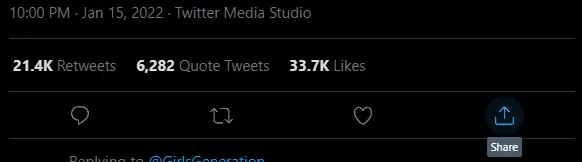
Open the post and select Share
Go to the public post that contains the media you want. Select its Share control so you can copy the post URL, rather than a link to a profile or search results page.
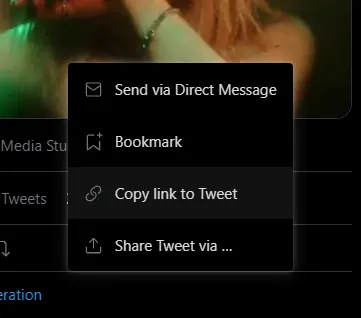
Copy the post link
Choose Copy link. Before moving on, make sure you have the full post URL. For example, a typical link follows the pattern https://twitter.com/user/status/123456789; the account name and ID will differ for your post.
Paste it into BraveDown
Open the downloader and paste the URL into its input field. Check that the address points to the intended public post, particularly if you copied several links while browsing.

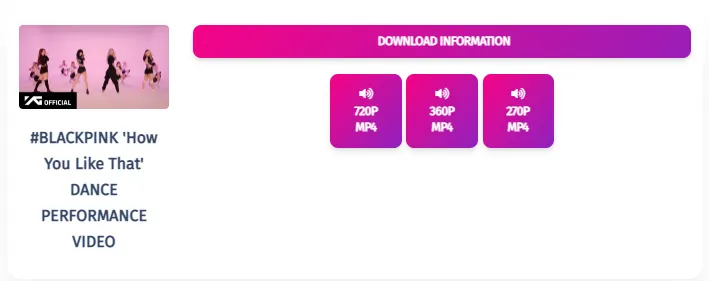
Download an available MP4
Select Download to process the link. If several file options appear, pick the resolution that suits your needs and save the MP4. On some mobile browsers, you may need to confirm the save or find the file in Downloads afterward.
What if the MP4 download does not appear?
A failed attempt does not always mean the video is unavailable. Work through these checks in order, starting with the post itself.
For a GIF-like post, try the same public post link. An MP4 option may appear if that media can be processed.
Use downloaded videos responsibly
A public post can be viewed openly, but that alone does not give everyone permission to reuse its video. Before reposting, editing, publishing, or using a clip for work, check who owns it and obtain any permission your use requires.
- Use your own posts or media you are authorized to save and use.
- Respect the creator's rights and any people shown in the video.
- Do not attempt to access media from private accounts through a downloader.
Save the public video you need
Keep the post link handy, confirm you have the right to use the media, and choose an available MP4 option. Ready to begin? Open the downloader below and paste your link.
Open the twitter to mp4 downloaderFrequently Asked Questions
Open the public post containing the video, select Share, and copy its link. Paste that URL into BraveDown and select Download. If the tool shows several MP4 options, choose the one that suits your screen or storage needs, then save the file through your browser.
It means saving video media from a Twitter post as an MP4 file. Instead of keeping only a link to the post, you get a local video file for permitted viewing or other authorized uses. The original post must be accessible for a downloader to process its media.
First, check whether the post is public and still available. Then copy the complete link from the individual post, including its status ID, and try again. If processing succeeds but no file appears, inspect your browser's download list, Downloads folder, and any settings or extensions that might block downloads.
BraveDown is described here as supporting public post links. A private post is restricted to its approved audience, so you should not expect a public-link downloader to retrieve it. Ask the creator to share the video with you directly if you need an authorized copy.
No app installation is needed for the workflow described on this page. Copy a public post URL, open BraveDown in your browser, paste the link, and select an available download. Your browser may still ask you to confirm where the finished MP4 should be saved.
You can copy the public post link on your phone and open BraveDown in a mobile browser. Paste the URL, process it, and choose an available MP4 option. Depending on your phone and browser, the file may appear in a Downloads folder rather than opening automatically.
You can try the same steps with the public post containing the GIF-like media. Paste its full post URL and see whether BraveDown offers an MP4 file. Availability depends on that post and its media, so an MP4 option should not be assumed for every link.
Copy the link to the individual public post that contains the video. A typical URL includes an account name, the segment /status/, and a numeric post ID. Avoid pasting a profile page, search results page, or incomplete address, because those may not identify the media you want.
Choose from the options the downloader actually displays. A higher resolution may look better on a large screen, while a smaller file may be easier to store or send when you have permission to do so. Available qualities depend on the media associated with the original post.
Downloading a file does not automatically grant permission to repost or republish it. Check who owns the video and whether you have the rights needed for your intended use. For content made by someone else, seeking the creator's permission is a sensible step before sharing the file elsewhere.
Popular Tools


